> ## Documentation Index
> Fetch the complete documentation index at: https://julius.ai/docs/llms.txt
> Use this file to discover all available pages before exploring further.
# Google Ads
> Connect Julius to your Google Ads account to analyze campaign performance, research keywords, and optimize your advertising spend.
## What is Google Ads?
**Google Ads** is Google's online advertising platform where businesses create ads that appear on Google Search, YouTube, and partner websites. With Julius, you can analyze your ad performance, research keywords, and optimize your spend.
## Connection requirements
To connect Julius to Google Ads, you need:
1. A Google account with access to Google Ads
2. Permission to view (and optionally manage) the Google Ads account you want to analyze
The connection process uses Google's secure OAuth flow — you simply log in with your Google account and select which ad account to connect.
## Connecting Julius to Google Ads
1. Go to your [Julius Data Connectors Settings](https://julius.ai/settings/data_connectors)
2. Select **Google Ads** from the available options
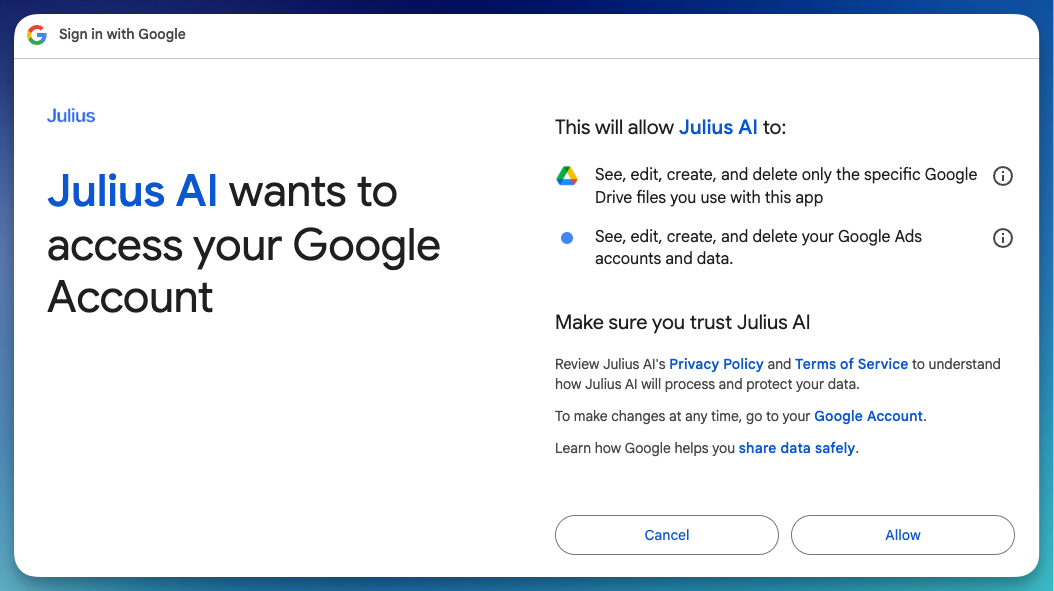
When you click **Connect to Google Ads**, you'll be redirected to Google's authorization page:
1. **Sign in with your Google account** (if not already signed in)
2. **Review and approve the permissions.** Google will show you what Julius AI is requesting:
* See, edit, create, and delete only the specific Google Drive files you use with this app
* See, edit, create, and delete your Google Ads accounts and data
Review and click **Allow** to proceed.
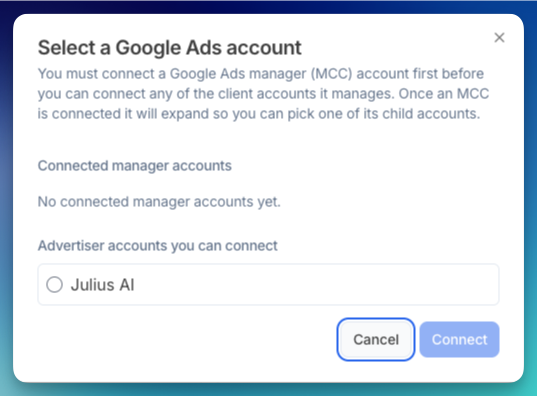
 3. **Select your Google Ads account.** After granting permissions, a Julius modal lets you pick which account to connect.
* If you have a Google Ads manager (MCC) account, you must connect it first before you can connect any client accounts it manages
* Once an MCC is connected, it will expand so you can select one of its child accounts
* Select the account and click **Connect**
3. **Select your Google Ads account.** After granting permissions, a Julius modal lets you pick which account to connect.
* If you have a Google Ads manager (MCC) account, you must connect it first before you can connect any client accounts it manages
* Once an MCC is connected, it will expand so you can select one of its child accounts
* Select the account and click **Connect**
 Julius requests permission to manage your Google Ads data. This includes both viewing and making changes to campaigns when you enable edit operations.
* **What it is:** A friendly name to identify this Google Ads connection
* **Example:** "Main Ad Account" or "E-commerce Campaigns"
* **Tip:** Choose a name that helps you remember which ad account this connects to
Your connection is tested and saved automatically once the OAuth flow completes.
## Enabling write access (optional)
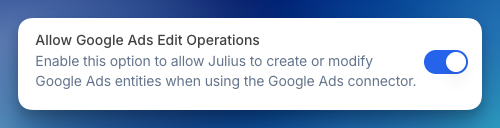
During OAuth setup, Julius requests full management permissions. However, for safety, you must explicitly enable edit operations in each conversation before Julius can make changes to your campaigns.
In any conversation where you want Julius to make changes:
1. Click the settings icon in your conversation
2. Under **Data Connectors**, toggle on **Allow Google Ads Edit Operations**
Julius requests permission to manage your Google Ads data. This includes both viewing and making changes to campaigns when you enable edit operations.
* **What it is:** A friendly name to identify this Google Ads connection
* **Example:** "Main Ad Account" or "E-commerce Campaigns"
* **Tip:** Choose a name that helps you remember which ad account this connects to
Your connection is tested and saved automatically once the OAuth flow completes.
## Enabling write access (optional)
During OAuth setup, Julius requests full management permissions. However, for safety, you must explicitly enable edit operations in each conversation before Julius can make changes to your campaigns.
In any conversation where you want Julius to make changes:
1. Click the settings icon in your conversation
2. Under **Data Connectors**, toggle on **Allow Google Ads Edit Operations**
 See complete details on what you can and cannot do with write access, including keyword management, ad creation, limitations, and best practices.
## Using your Google Ads connector
Once connected, start a conversation with Julius and ask about your advertising data in natural language:
* "What campaigns are spending the most?"
* "Show me conversion rates by ad group"
* "Create a chart of impressions over time"
* "Which keywords have the best ROI?"
Julius will connect to your Google Ads account, write and execute GAQL queries, process metrics (e.g., micros to currency), and present results with visualizations.
You don't need to know GAQL. Just ask Julius what you want to know and it will handle the technical details.
### What you can do
**Analyze campaign performance:**
* "Show me campaign performance for the last 30 days"
* "Which ad groups have the highest click-through rate?"
* "What's my average cost per conversion by campaign?"
* "Compare this month's ad spend to last month"
**Browse your advertising data:**
* **Customers** — Account information, currency, timezone
* **Campaigns** — Names, status, budgets, dates
* **Ad Groups** — Structure, bids, targeting
* **Ads** — Ad copy, performance, status
* **Keywords** — Criteria, match types, bids
* **Assets** — Images, headlines, and other creative assets
* **Budgets** — Allocation and delivery methods
**Research keywords.** Julius can fetch average monthly search volumes, competition levels, top-of-page bid estimates, average CPC, and volume trends:
* "Show me search volume trends for \[keyword list]"
* "What's the average CPC for these keywords?"
* "Give me competition data for my target keywords"
**Manage campaigns** (when write access is enabled):
* Add or remove keywords from ad groups
* Update keyword match types and bids
* Create responsive search ads
* Change ad or keyword status (enabled, paused, removed)
### Understanding currency values
Google Ads reports many metrics in "micros" (1/1,000,000th of the currency unit). Julius automatically converts:
* `cost_micros: 5000000` becomes `cost: 5.00` (in your account currency)
* Both raw micros and converted values are available for analysis
## Best practices
* **Use clear date ranges** in your questions to get relevant data (e.g., "last 30 days", "this quarter")
* **Start with summary data** before drilling into specifics
* **Monitor your account** after making campaign changes through Julius
* **Set up scheduled notebooks** to automate regular performance reports
* **Share insights with your team** using Julius's collaboration features
Google Ads campaigns often have large datasets. Be specific in your questions. Ask "Show me my top 10 campaigns by spend last week" instead of "Show me all campaign data."
### Questions to get started
* "What's my total ad spend this month compared to last month?"
* "Show me my top performing keywords by conversion rate"
* "Create a chart of click-through rates by campaign"
* "Which campaigns have the highest cost per acquisition?"
* "Show me search terms that triggered my ads this week"
* "What's the average position of my ads?"
* "Compare performance across different ad groups"
* "Research keyword volume for \[your keywords]"
## Troubleshooting
* Verify you're signed in with the correct Google account
* Ensure your Google account has access to the Google Ads account
* Check that the Google Ads account is active and not suspended
* If you're using a manager account (MCC), make sure you have proper access permissions
* Verify your account has permission to view the requested data
* Check if you're trying to access a specific customer ID you don't have access to
* Ensure your OAuth connection is still valid (reconnect if needed)
* Confirm the Google Ads account is active
* Confirm your campaigns are active and not deleted
* Check that you're connected to the correct Google Ads account
* Verify your account has campaigns with data in the time period you're querying
* Try specifying a date range in your question
* Verify you have enabled **Allow Google Ads Edit Operations** in the conversation settings
* Check that your Google account has edit access to the Google Ads account
* Try reconnecting your Google Ads account if the issue persists
## Security & trust
* **SOC 2 Type 2 Certified:** Julius meets strict security standards for handling sensitive data
* **Secure OAuth:** Uses Google's OAuth 2.0 authentication
* **Encryption:** All credentials and data are encrypted both in transit and at rest
* **No data storage:** Julius doesn't permanently store your advertising data — it only queries what you request
* **Access control:** Only you can access connections you create
* **Token security:** Access tokens are encrypted using Google Cloud KMS
Visit our Security & Trust Center to learn how Julius protects your data and maintains compliance standards.
***
Reach out to [**team@julius.ai**](mailto:team@julius.ai) for support or to ask questions not answered in our documentation.
See complete details on what you can and cannot do with write access, including keyword management, ad creation, limitations, and best practices.
## Using your Google Ads connector
Once connected, start a conversation with Julius and ask about your advertising data in natural language:
* "What campaigns are spending the most?"
* "Show me conversion rates by ad group"
* "Create a chart of impressions over time"
* "Which keywords have the best ROI?"
Julius will connect to your Google Ads account, write and execute GAQL queries, process metrics (e.g., micros to currency), and present results with visualizations.
You don't need to know GAQL. Just ask Julius what you want to know and it will handle the technical details.
### What you can do
**Analyze campaign performance:**
* "Show me campaign performance for the last 30 days"
* "Which ad groups have the highest click-through rate?"
* "What's my average cost per conversion by campaign?"
* "Compare this month's ad spend to last month"
**Browse your advertising data:**
* **Customers** — Account information, currency, timezone
* **Campaigns** — Names, status, budgets, dates
* **Ad Groups** — Structure, bids, targeting
* **Ads** — Ad copy, performance, status
* **Keywords** — Criteria, match types, bids
* **Assets** — Images, headlines, and other creative assets
* **Budgets** — Allocation and delivery methods
**Research keywords.** Julius can fetch average monthly search volumes, competition levels, top-of-page bid estimates, average CPC, and volume trends:
* "Show me search volume trends for \[keyword list]"
* "What's the average CPC for these keywords?"
* "Give me competition data for my target keywords"
**Manage campaigns** (when write access is enabled):
* Add or remove keywords from ad groups
* Update keyword match types and bids
* Create responsive search ads
* Change ad or keyword status (enabled, paused, removed)
### Understanding currency values
Google Ads reports many metrics in "micros" (1/1,000,000th of the currency unit). Julius automatically converts:
* `cost_micros: 5000000` becomes `cost: 5.00` (in your account currency)
* Both raw micros and converted values are available for analysis
## Best practices
* **Use clear date ranges** in your questions to get relevant data (e.g., "last 30 days", "this quarter")
* **Start with summary data** before drilling into specifics
* **Monitor your account** after making campaign changes through Julius
* **Set up scheduled notebooks** to automate regular performance reports
* **Share insights with your team** using Julius's collaboration features
Google Ads campaigns often have large datasets. Be specific in your questions. Ask "Show me my top 10 campaigns by spend last week" instead of "Show me all campaign data."
### Questions to get started
* "What's my total ad spend this month compared to last month?"
* "Show me my top performing keywords by conversion rate"
* "Create a chart of click-through rates by campaign"
* "Which campaigns have the highest cost per acquisition?"
* "Show me search terms that triggered my ads this week"
* "What's the average position of my ads?"
* "Compare performance across different ad groups"
* "Research keyword volume for \[your keywords]"
## Troubleshooting
* Verify you're signed in with the correct Google account
* Ensure your Google account has access to the Google Ads account
* Check that the Google Ads account is active and not suspended
* If you're using a manager account (MCC), make sure you have proper access permissions
* Verify your account has permission to view the requested data
* Check if you're trying to access a specific customer ID you don't have access to
* Ensure your OAuth connection is still valid (reconnect if needed)
* Confirm the Google Ads account is active
* Confirm your campaigns are active and not deleted
* Check that you're connected to the correct Google Ads account
* Verify your account has campaigns with data in the time period you're querying
* Try specifying a date range in your question
* Verify you have enabled **Allow Google Ads Edit Operations** in the conversation settings
* Check that your Google account has edit access to the Google Ads account
* Try reconnecting your Google Ads account if the issue persists
## Security & trust
* **SOC 2 Type 2 Certified:** Julius meets strict security standards for handling sensitive data
* **Secure OAuth:** Uses Google's OAuth 2.0 authentication
* **Encryption:** All credentials and data are encrypted both in transit and at rest
* **No data storage:** Julius doesn't permanently store your advertising data — it only queries what you request
* **Access control:** Only you can access connections you create
* **Token security:** Access tokens are encrypted using Google Cloud KMS
Visit our Security & Trust Center to learn how Julius protects your data and maintains compliance standards.
***
Reach out to [**team@julius.ai**](mailto:team@julius.ai) for support or to ask questions not answered in our documentation.