
1
Open a Notebook
Open an existing Notebook, or create a new one in My Notebooks.
2
Find the Schedule Icon
Click on the clock icon to open up the scheduler:
3
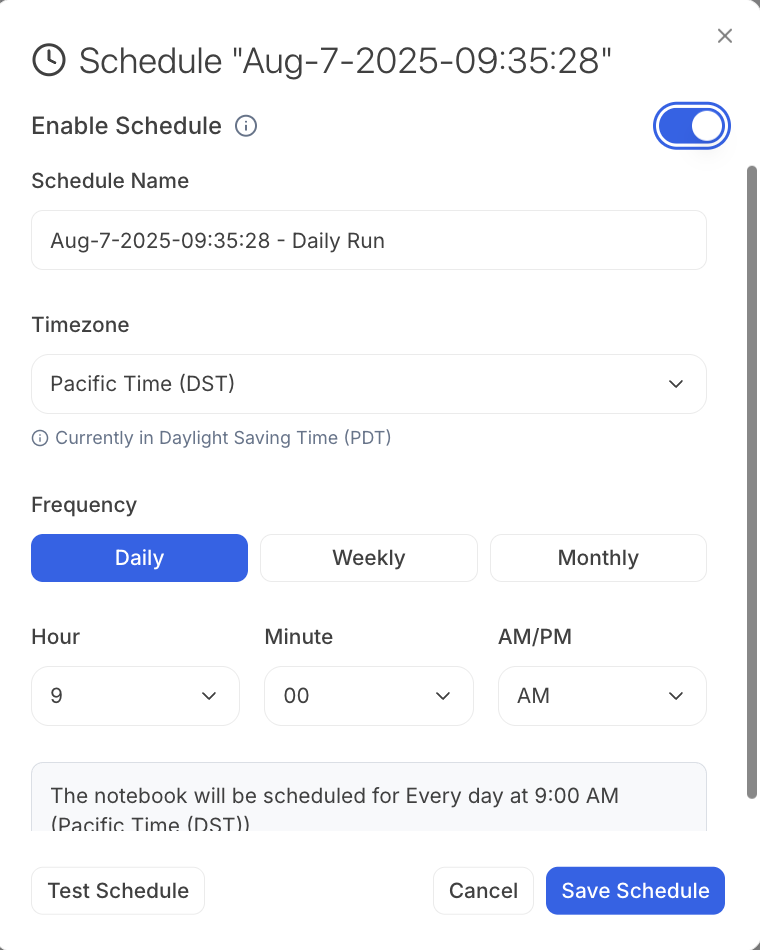
Enable Schedule
Turn the Enable Schedule toggle on and fill in the details: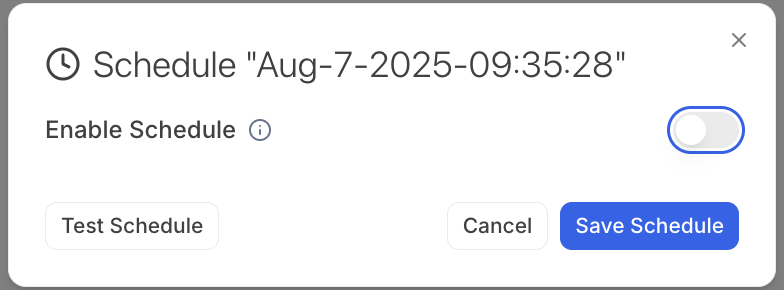
4
See your Scheduled Notebooks
Find all of your scheduled notebooks in My Notebooks in the Scheduled tab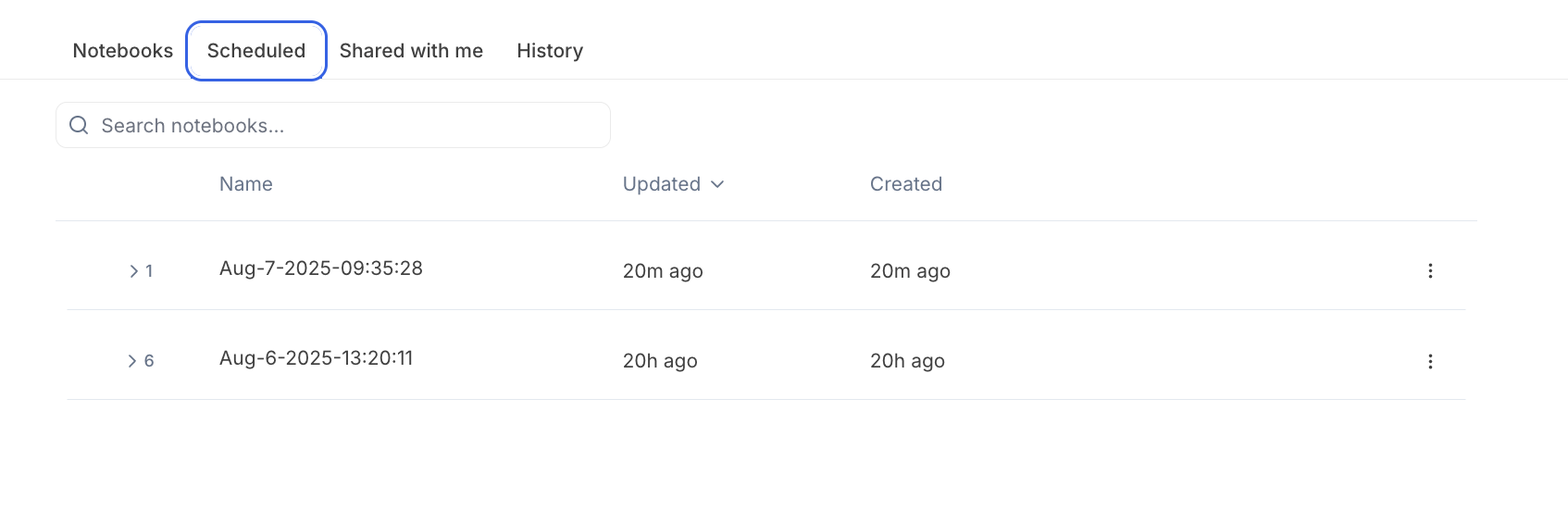
Use the Test Schedule feature to do an instant run of the scheduled Notebook. Great for a quick preview of your scheduled run.
Reach out to team@julius.ai for support or to ask questions not answered in our documentation.