> ## Documentation Index
> Fetch the complete documentation index at: https://julius.ai/docs/llms.txt
> Use this file to discover all available pages before exploring further.
# Setup Guide
> Step-by-step instructions to install and configure Julius Slack Agent in your workspace
## Prerequisites
Before installing Julius Slack Agent, ensure you have:
* **Julius Account:** An active Julius account with appropriate permissions
* **Slack Workspace Access:** Admin or workspace owner permissions may be
required
* **Data Connectors (Optional):** Pre-configured data connectors in Julius for
database access
If your workspace has strict app installation policies, coordinate with your
IT administrator before proceeding.
### Access Control
* Only members of the Julius team can interact with the Slack agent.
* All threads created within Slack will be automatically shared with your Julius team.
Your Slack workspace email **must** match your Julius account email, and your Julius account must be a member of the Julius team, in order to interact with the Slack agent.
## Installation Steps
Navigate to your Data connector settings
[julius.ai/settings/data\_connectors](https://julius.ai/settings/data_connectors)
In the Data Connectors page:
1. Look for the Integrations section
2. Click on the **Connect Slack** or **Add to Slack** button
 You'll be redirected to Slack to authorize the integration:
1. Select your Slack workspace from the dropdown
2. Review the permissions Julius is requesting
3. Click **Allow** to grant access
We recommend reviewing the permissions Julius is requesting before granting access. Julius only requests permissions for the absolute minimum necessary to function.
## Configure Slack Settings
After connecting Slack, you can configure your integration settings, including setting a default data connection.
Navigate to your Data Connectors page and find the Slack integration under the Integrations section. Click the **Settings** button.
You'll be redirected to Slack to authorize the integration:
1. Select your Slack workspace from the dropdown
2. Review the permissions Julius is requesting
3. Click **Allow** to grant access
We recommend reviewing the permissions Julius is requesting before granting access. Julius only requests permissions for the absolute minimum necessary to function.
## Configure Slack Settings
After connecting Slack, you can configure your integration settings, including setting a default data connection.
Navigate to your Data Connectors page and find the Slack integration under the Integrations section. Click the **Settings** button.
 In the Slack Integration Settings modal:
1. Select a **Default Data Connection** from the dropdown - this connector will automatically be used at the beginning of each Slack thread
2. Optionally, send a test message to verify your integration is working
3. Click **Done** to save your settings
In the Slack Integration Settings modal:
1. Select a **Default Data Connection** from the dropdown - this connector will automatically be used at the beginning of each Slack thread
2. Optionally, send a test message to verify your integration is working
3. Click **Done** to save your settings
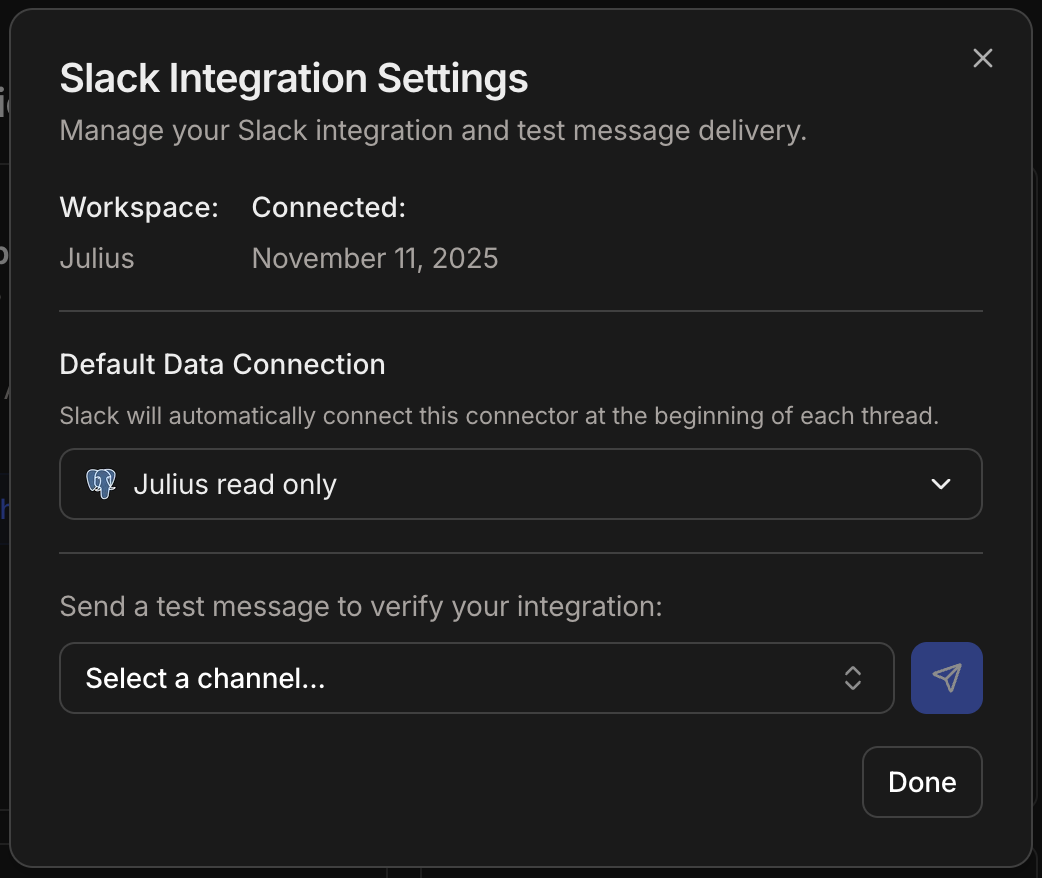 Setting a default data connection is especially useful if your team primarily queries one database. Julius will automatically connect to this data source in every new Slack thread, so you can start asking questions right away.
## Try it in Slack
Now that Julius is installed, let's test it out in your Slack workspace!
### Step 1: Invite Julius to a Channel
First, invite Julius to the channel where you want to use it. You can use the `/invite` command:
Setting a default data connection is especially useful if your team primarily queries one database. Julius will automatically connect to this data source in every new Slack thread, so you can start asking questions right away.
## Try it in Slack
Now that Julius is installed, let's test it out in your Slack workspace!
### Step 1: Invite Julius to a Channel
First, invite Julius to the channel where you want to use it. You can use the `/invite` command:
 In any Slack channel, type `/invite @Julius` and press Enter to add Julius to that channel. Once added, Julius will be ready to respond to queries.
### Step 2: Start Querying Julius
Now you're ready to ask Julius questions! Simply @mention Julius and ask your question. Julius will analyze your request and provide results.
In any Slack channel, type `/invite @Julius` and press Enter to add Julius to that channel. Once added, Julius will be ready to respond to queries.
### Step 2: Start Querying Julius
Now you're ready to ask Julius questions! Simply @mention Julius and ask your question. Julius will analyze your request and provide results.
 If you've configured data connectors in Julius, they're automatically available in Slack. Julius will intelligently detect which connector to use based on your query.
### Recommended Channel Setup
We recommend creating an **#ask-julius** channel for your team:
1. Create a new public channel named `#ask-julius`
2. Add a channel description: "Ask Julius for data analysis and insights"
3. Invite Julius to the channel
4. Pin a message with example queries for team reference
## Connecting Data Sources
Data connectors configured in Julius are automatically available through the
Slack agent. No additional configuration required.
Learn how to reference your connectors by name or type and use automatic connector detection in your queries.
## Common Issues & Troubleshooting
**Solution:**
* Verify Julius is added to the channel (`/invite @Julius`)
* Ensure you're @mentioning Julius in your message
* Check if Julius appears in the channel's app list
* Ensure your slack Email matches your Julius account email
**Solution:** - Confirm data connectors are configured in your Julius account
* Re-authenticate the Slack integration if needed - Verify your Julius account
has access to the data sources
**Solution:** - Contact your Slack workspace administrator - Share Julius's
security documentation: [julius.ai/security](https://julius.ai/security) -
Request addition to approved apps list
**Solution:**
* Configure data connectors at [julius.ai/settings/data\_connectors](https://julius.ai/settings/data_connectors)
* Ensure connectors are active and tested
* Try specifying the exact connector name in your query
## Next Steps
Learn about all Julius Slack Agent capabilities
Set up automated reporting
***
If you've configured data connectors in Julius, they're automatically available in Slack. Julius will intelligently detect which connector to use based on your query.
### Recommended Channel Setup
We recommend creating an **#ask-julius** channel for your team:
1. Create a new public channel named `#ask-julius`
2. Add a channel description: "Ask Julius for data analysis and insights"
3. Invite Julius to the channel
4. Pin a message with example queries for team reference
## Connecting Data Sources
Data connectors configured in Julius are automatically available through the
Slack agent. No additional configuration required.
Learn how to reference your connectors by name or type and use automatic connector detection in your queries.
## Common Issues & Troubleshooting
**Solution:**
* Verify Julius is added to the channel (`/invite @Julius`)
* Ensure you're @mentioning Julius in your message
* Check if Julius appears in the channel's app list
* Ensure your slack Email matches your Julius account email
**Solution:** - Confirm data connectors are configured in your Julius account
* Re-authenticate the Slack integration if needed - Verify your Julius account
has access to the data sources
**Solution:** - Contact your Slack workspace administrator - Share Julius's
security documentation: [julius.ai/security](https://julius.ai/security) -
Request addition to approved apps list
**Solution:**
* Configure data connectors at [julius.ai/settings/data\_connectors](https://julius.ai/settings/data_connectors)
* Ensure connectors are active and tested
* Try specifying the exact connector name in your query
## Next Steps
Learn about all Julius Slack Agent capabilities
Set up automated reporting
***