> ## Documentation Index
> Fetch the complete documentation index at: https://julius.ai/docs/llms.txt
> Use this file to discover all available pages before exploring further.
# Scheduled Slack Reports
> Set up automated notebook results to post to Slack channels on a custom schedule.
## Overview
Scheduled Reports automatically run Julius notebooks and send the results to Slack channels on a recurring basis. Share daily dashboards, weekly reports, or automated metrics with your team without manual work.
Once configured, your notebook runs automatically and posts results to Slack at the exact time you specify. No action needed from you.
## How It Works
1. **Create or select a notebook** with outputs you want to share (charts, tables, insights)
2. **Configure Slack destination** - choose which channel to send results to
3. **Set schedule** - define when and how often the report runs
4. **Preview and activate** - verify the format and turn on automation
5. **Results post automatically** - your team receives updates on schedule
## Step-by-Step Setup Guide
### Step 1: Navigate to the Slack Report Tab
Open your notebook in Julius and look for the **Slack Report** tab at the top of the interface. This is where you'll configure your scheduled reports.
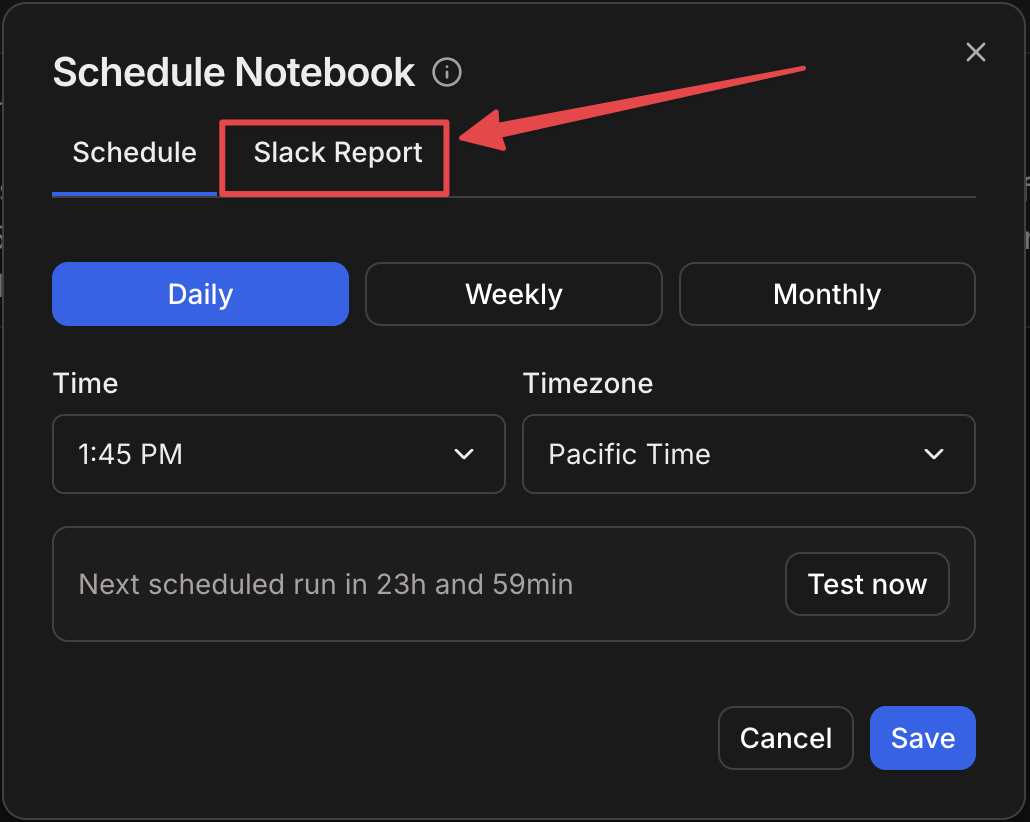 **What to look for:**
* The "Slack Report" tab in the notebook interface
* This opens the configuration panel for scheduling reports to Slack
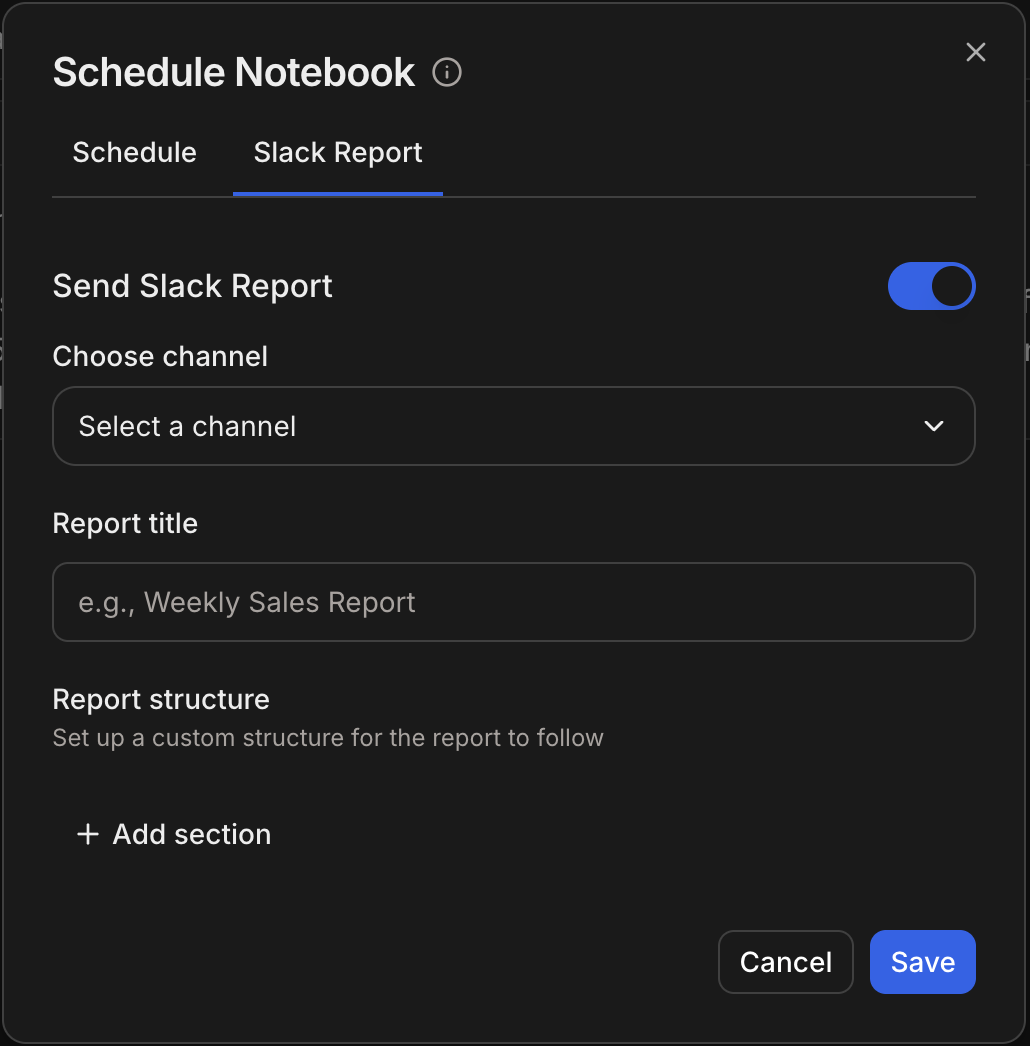
### Step 2: Configure Your Report Settings
Click on the **Slack Report** tab to access the configuration form. Here you'll set up all the details for your scheduled report.
**What to look for:**
* The "Slack Report" tab in the notebook interface
* This opens the configuration panel for scheduling reports to Slack
### Step 2: Configure Your Report Settings
Click on the **Slack Report** tab to access the configuration form. Here you'll set up all the details for your scheduled report.
 ## What Gets Posted to Slack
When your scheduled report runs, Julius summarizes the results of the notebook into a few high level insights. It then creates a thread with a more detailed breakdown of the results
## Best Practices
Run your notebook manually once to verify outputs look good in Slack format. Some visualizations may display differently than in Julius.
Schedule reports when your team is most likely to see and use them. Avoid early mornings or late evenings.
Name reports clearly so team members know what to expect:
```
Good: "Weekly User Growth Report"
Good: "Daily Revenue Dashboard"
Avoid: "Report 1", "Data Export"
```
After setting up a new schedule, check Slack to ensure the first run posts correctly. Verify formatting and data accuracy.
## Troubleshooting
**Causes and solutions:**
* Julius may not be installed in the target channel
* The channel name or workspace might be incorrect
* Your Slack credentials may have expired
**Solution:**
1. Verify Julius is in the target channel (mention @Julius to confirm)
2. Check the channel name is spelled correctly
3. Try re-authorizing the Slack connection in settings
**Causes:**
* Notebook cells didn't complete execution
* Data connectors are not authorized for the scheduled run
* Query timed out
**Solution:**
1. Run the notebook manually to ensure it completes
2. Verify data connector credentials are saved and active
3. Simplify complex queries if they're timing out
**Causes:**
* Time zone settings are incorrect
* Browser time settings don't match server time
**Solution:**
1. Verify your selected time zone matches your location
2. Check the "Next Run" time shown in the UI
**Causes:**
* Wide tables may need to be scrolled in Slack
* Some chart types render differently in Slack
* Colors may not display as expected
**Solution:**
1. Design notebooks with Slack's width in mind
2. Test output in Slack before scheduling
3. Use clear titles and descriptions for context
**Solution:**
1. Go to the Slack Report tab
2. Find the active report
3. Click the delete/trash icon
4. Confirm deletion
5. The report will stop immediately
## Real-World Examples
### Example 1: Daily Sales Dashboard
**Setup:**
* **Notebook:** Sales metrics with charts showing daily revenue, orders, and top products
* **Channel:** #sales-team
* **Schedule:** Daily at 9:00 AM EST
* **Message:** "Yesterday's sales performance is below. Questions? Ask in thread."
**Result:** Sales team sees consistent daily metrics without requesting reports
### Example 2: Weekly Performance Report
**Setup:**
* **Notebook:** Weekly analytics with trend analysis
* **Channel:** #executive-team
* **Schedule:** Every Monday at 8:00 AM EST
* **Message:** "Weekly performance summary attached. See detailed analysis in linked notebook."
**Result:** Leadership gets weekly insights automatically without manual compilation
### Example 3: Hourly Alert Dashboard
**Setup:**
* **Notebook:** System metrics and error rates
* **Channel:** #engineering-alerts
* **Schedule:** Every hour
* **Message:** "Hourly health check. Alert if values exceed thresholds."
**Result:** Engineering team stays informed of system status 24/7
## Next Steps
Build your first analysis notebook to schedule
Connect data sources for your reports
Explore other Slack Agent features
Need help setting up reports?
***
Have questions about scheduled reports? Reach out to [**team@julius.ai**](mailto:team@julius.ai) for support.
## What Gets Posted to Slack
When your scheduled report runs, Julius summarizes the results of the notebook into a few high level insights. It then creates a thread with a more detailed breakdown of the results
## Best Practices
Run your notebook manually once to verify outputs look good in Slack format. Some visualizations may display differently than in Julius.
Schedule reports when your team is most likely to see and use them. Avoid early mornings or late evenings.
Name reports clearly so team members know what to expect:
```
Good: "Weekly User Growth Report"
Good: "Daily Revenue Dashboard"
Avoid: "Report 1", "Data Export"
```
After setting up a new schedule, check Slack to ensure the first run posts correctly. Verify formatting and data accuracy.
## Troubleshooting
**Causes and solutions:**
* Julius may not be installed in the target channel
* The channel name or workspace might be incorrect
* Your Slack credentials may have expired
**Solution:**
1. Verify Julius is in the target channel (mention @Julius to confirm)
2. Check the channel name is spelled correctly
3. Try re-authorizing the Slack connection in settings
**Causes:**
* Notebook cells didn't complete execution
* Data connectors are not authorized for the scheduled run
* Query timed out
**Solution:**
1. Run the notebook manually to ensure it completes
2. Verify data connector credentials are saved and active
3. Simplify complex queries if they're timing out
**Causes:**
* Time zone settings are incorrect
* Browser time settings don't match server time
**Solution:**
1. Verify your selected time zone matches your location
2. Check the "Next Run" time shown in the UI
**Causes:**
* Wide tables may need to be scrolled in Slack
* Some chart types render differently in Slack
* Colors may not display as expected
**Solution:**
1. Design notebooks with Slack's width in mind
2. Test output in Slack before scheduling
3. Use clear titles and descriptions for context
**Solution:**
1. Go to the Slack Report tab
2. Find the active report
3. Click the delete/trash icon
4. Confirm deletion
5. The report will stop immediately
## Real-World Examples
### Example 1: Daily Sales Dashboard
**Setup:**
* **Notebook:** Sales metrics with charts showing daily revenue, orders, and top products
* **Channel:** #sales-team
* **Schedule:** Daily at 9:00 AM EST
* **Message:** "Yesterday's sales performance is below. Questions? Ask in thread."
**Result:** Sales team sees consistent daily metrics without requesting reports
### Example 2: Weekly Performance Report
**Setup:**
* **Notebook:** Weekly analytics with trend analysis
* **Channel:** #executive-team
* **Schedule:** Every Monday at 8:00 AM EST
* **Message:** "Weekly performance summary attached. See detailed analysis in linked notebook."
**Result:** Leadership gets weekly insights automatically without manual compilation
### Example 3: Hourly Alert Dashboard
**Setup:**
* **Notebook:** System metrics and error rates
* **Channel:** #engineering-alerts
* **Schedule:** Every hour
* **Message:** "Hourly health check. Alert if values exceed thresholds."
**Result:** Engineering team stays informed of system status 24/7
## Next Steps
Build your first analysis notebook to schedule
Connect data sources for your reports
Explore other Slack Agent features
Need help setting up reports?
***
Have questions about scheduled reports? Reach out to [**team@julius.ai**](mailto:team@julius.ai) for support.